Build versions and keep filing history
After you prepare and tag the filing, build a version for checks and review; return here after filing to keep its history.
Who can do this
People with filing access can inspect the versions available to them. Building and restoring need the relevant edit permission. Only organization admins can roll forward a saved version. Review locks can prevent changes. Filing history and exports have separate permission checks. See Document roles.
Before you begin
- You can open the filing in the editor.
- Your content and tags are ready for the version you want to build.
Build a version
- Finish your edits.
- Click Build version N.
- Wait for the build result.
- Read any problems shown.
Autosave keeps edits. It does not build a document version. BriskTag chooses the next version number.
Not ready to file means the saved version has problems that block filing. Fix the listed problems before you build again. A saved version and a passing Check filing result serve different purposes. You need both before the filing can proceed.
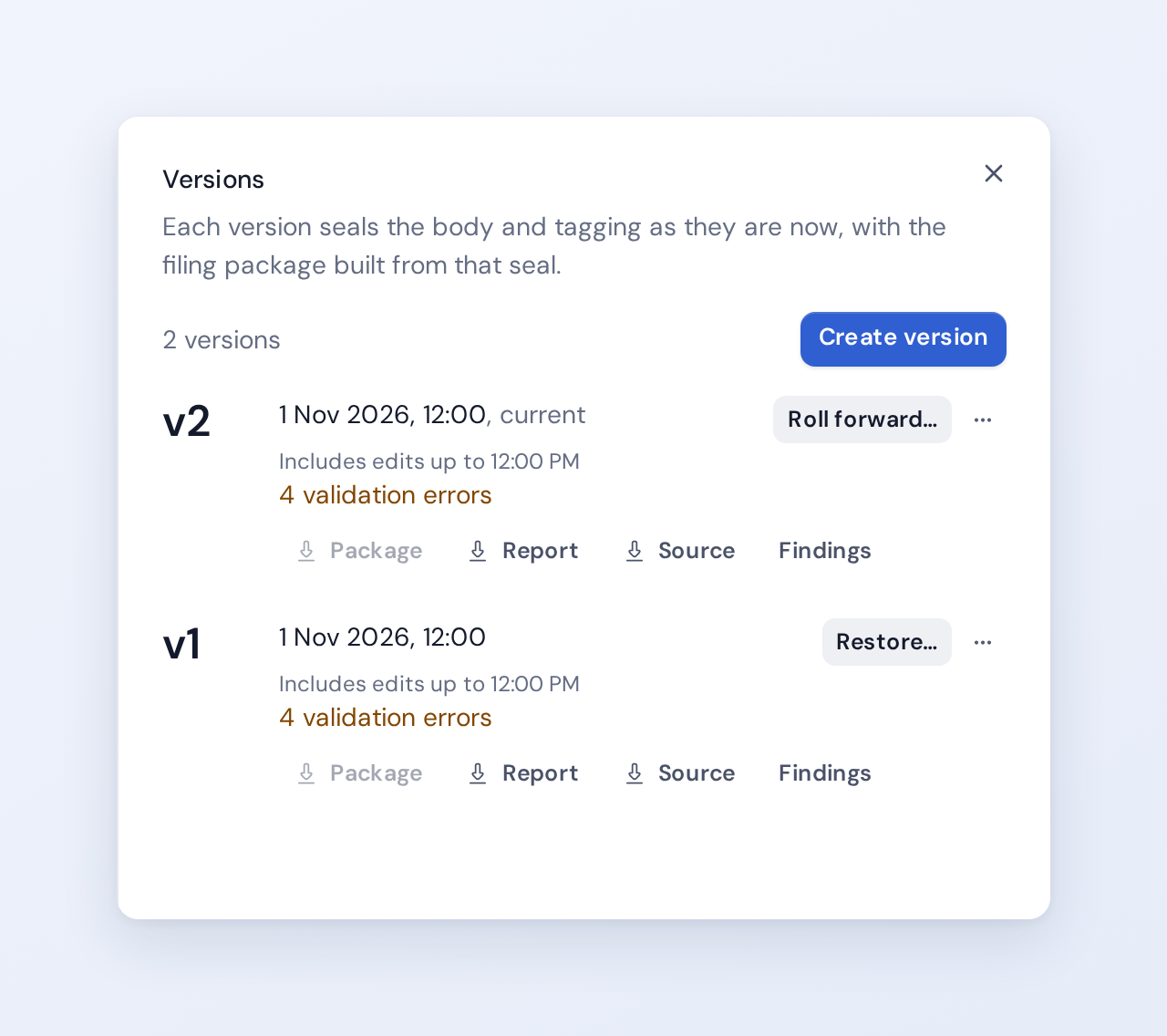
Inspect versions and changes
- On the Review tab, open Document versions.
- Check the version number and its status.
- Open Changes since version to inspect editor changes against a saved version.
Restore is a separate action. It makes a saved version current again and keeps the history. Read the confirmation before you restore.
Keep filing history
For SEC filings, open Filing status to inspect attempts and outcomes. Use Download what we sent to keep the submitted package. See Send a TEST filing to EDGAR.
For ESEF, keep the recorded version, package filename, hash and external evidence. Corrections append to the record. A void keeps the history. See Prepare and export an ESEF package.
Export a review copy
- On the File tab, choose Export to Word (Beta) or Export to PDF.
- Choose the draft or a Saved version.
- Check the selected version and sections.
- Click Start export.
- Find the result in Your exports.
A review copy does not prove that the filing package is ready to submit.
Back up and restore
- Use Backup to download a BriskTag backup ZIP.
- Keep the ZIP with your filing records.
To recreate a document, open Documents and choose Restore from backup. Select the backup ZIP. Read the dialog before you click Restore document.
Backup restore creates a document owned by you. Its review state starts at draft. Read the restore report before you rely on the restored content.
Start the next period
- Open Document versions.
- Choose Roll forward for the saved version.
- Enter the target period dates.
- Set the fiscal year and fiscal period.
- Review the proposed context dates.
- Confirm or correct each context that needs a decision.
- Follow the enabled action to create the next filing.
A version that is Not ready to file cannot roll forward. Resolve its problems first.
Next
Check the filing before you share it for formal review. After filing, use Source files for the next period.