Import and review a filing
After you prepare the company profile and Source files, import the report and review it before assembly.
Who can do this
A preparer with permission to start a filing. Anyone with permission to edit the filing content can accept the import. Only an organization admin can retry an import or change its profile.
Before you begin
- Have the source file ready, or use a supported file in Source files.
- Check the company profile, reporting period and filing regime.
- For ESEF, check the LEI, report language and taxonomy year.
Choose the source
- Go to Documents.
- Click Start a filing.
- Choose the source that matches your report.
| Source | What to use |
|---|---|
| Word document | A .docx draft. Review the conversion before editing. |
| PDF annual report | An ESEF annual report in PDF. It opens as a fixed layout for tagging. |
| HTML or inline XBRL | An HTML file, or a ZIP with its images. Existing tags come with it. |
| Filing from EDGAR | The filing's -xbrl.zip package, with its tags and company taxonomy. |
| ESEF report package | An .xbri or .zip package, with its tags and company taxonomy. |
If you have no source file, choose Blank filing. For a fee exhibit filed through another agent, choose Filing fee exhibit only. See Your first filing.
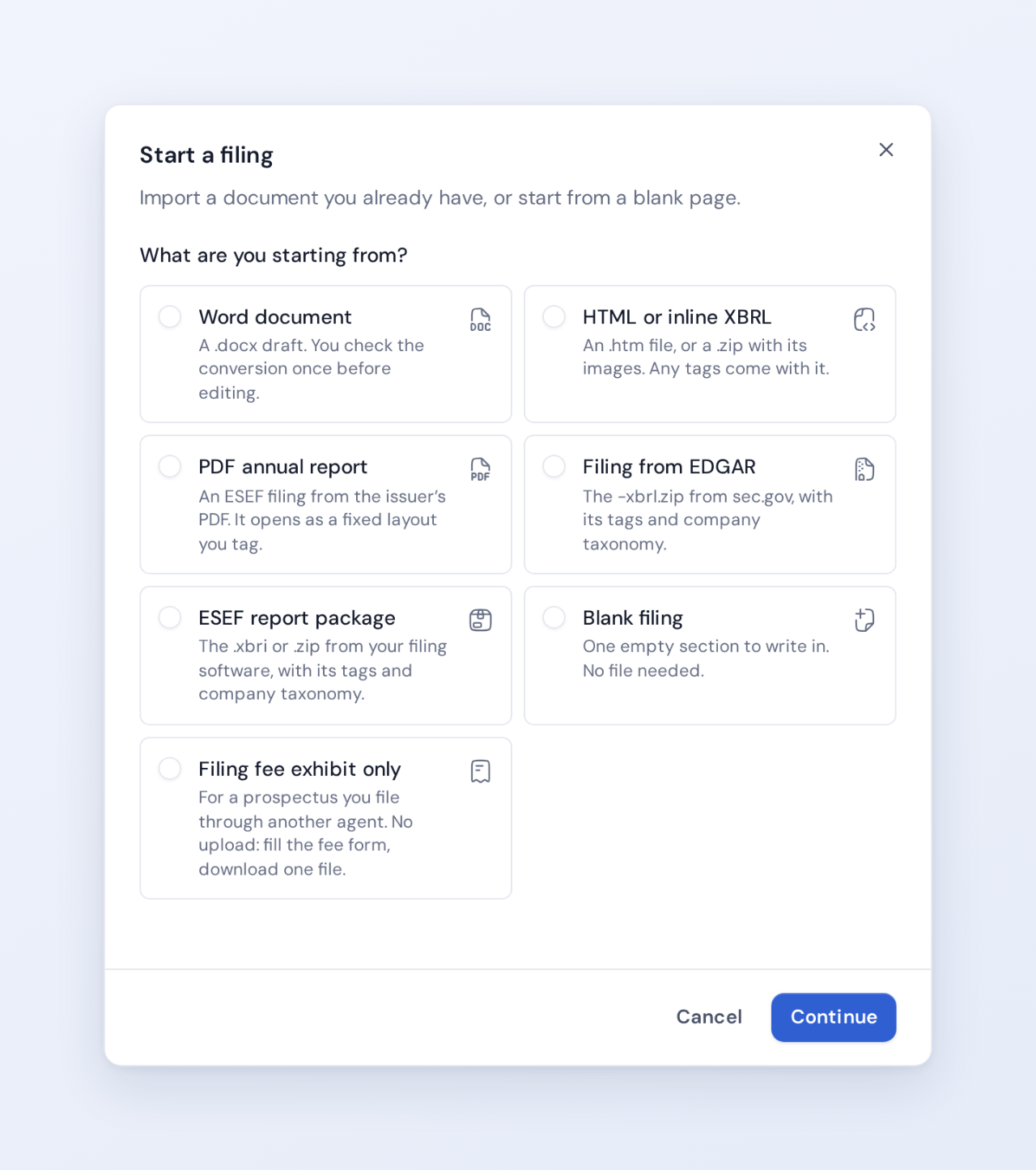
Upload or choose an existing source
- Upload the file requested by the source choice.
- To reuse a supported file, click Choose from Source files instead.
- Select the source file and version in the picker.
- Check the file name and version shown in the start form.
Use Change if you chose the wrong source. Uploading a file to Source files keeps it in the library. It does not start a filing.
Match the company profile
- Read Read from the package, when shown.
- Select the profile for the same company and reporting period.
- Check the regime, taxonomy year and report language where shown.
- Resolve any identity mismatch before you continue.
SEC package details include the company, CIK, form and period. ESEF package details include the LEI, regime, taxonomy year and report language.
A different CIK blocks the import with This profile is for a different company. Choose a matching profile, or create one for that company. Resolve a different LEI with the correct ESEF profile.
Review conversion
Import review shows the converted report and its findings.
- Read the conversion report.
- Compare the converted result with the source.
- Resolve each blocking finding.
- Choose an EDGAR document type for each unknown exhibit type, when prompted.
- Complete the review checks shown on the page.
Check missing images, changed content and company identity. Follow each finding's action. If a structural check fails, reject the import and import the file again.
Accept and open
- Tick the confirmation box after you finish the review.
- Click Accept and continue.
- Read the preparation progress in the task tray.
- Open the report when preparation finishes.
Anyone with permission to edit the filing content can accept. Acceptance resumes preparation; it does not complete tagging or filing checks.
Editable content opens in the editor. An ESEF PDF keeps its fixed layout for tagging. Do not expect normal text editing on that PDF.
Some SEC imports open as filed, read-only. Read the reason shown. Opening as filed does not grant edit access.
Recover a refused import
- Read the refusal reason.
- Follow the action shown for that reason.
- Ask an organization admin to use Retry import if the import needs a retry.
A retry uses the stored conversion. If the Word conversion itself needs a fix, import the Word file again for a fresh conversion.
When Fix and open is available, review its proposed changes before you accept them. Nothing changes through that action until you accept.
To discard an unaccepted import, click Reject and delete import. Read the confirmation before you confirm deletion. If the tags cannot be fixed here, contact support.
Continue assembly
Use document parts and sections to assemble the filing. Add source content where you need it. Sources used tracks source uses and offers supported comparisons and replacement choices.
Import does not complete tagging or make the filing ready to file.
Next: Assemble the filing.