Set up your account and organization
Start here to set up your account, organization and company profile before your first filing.
Who can do this
A new user creates an account and organization. Invited users follow their invitation instead. Only organization admins can create or change company profiles. They also manage the team and filing settings.
Before you begin
- You can open your email to verify the account.
- You have the company identity and reporting period for the profile.
Create your account
- Open the sign-up page.
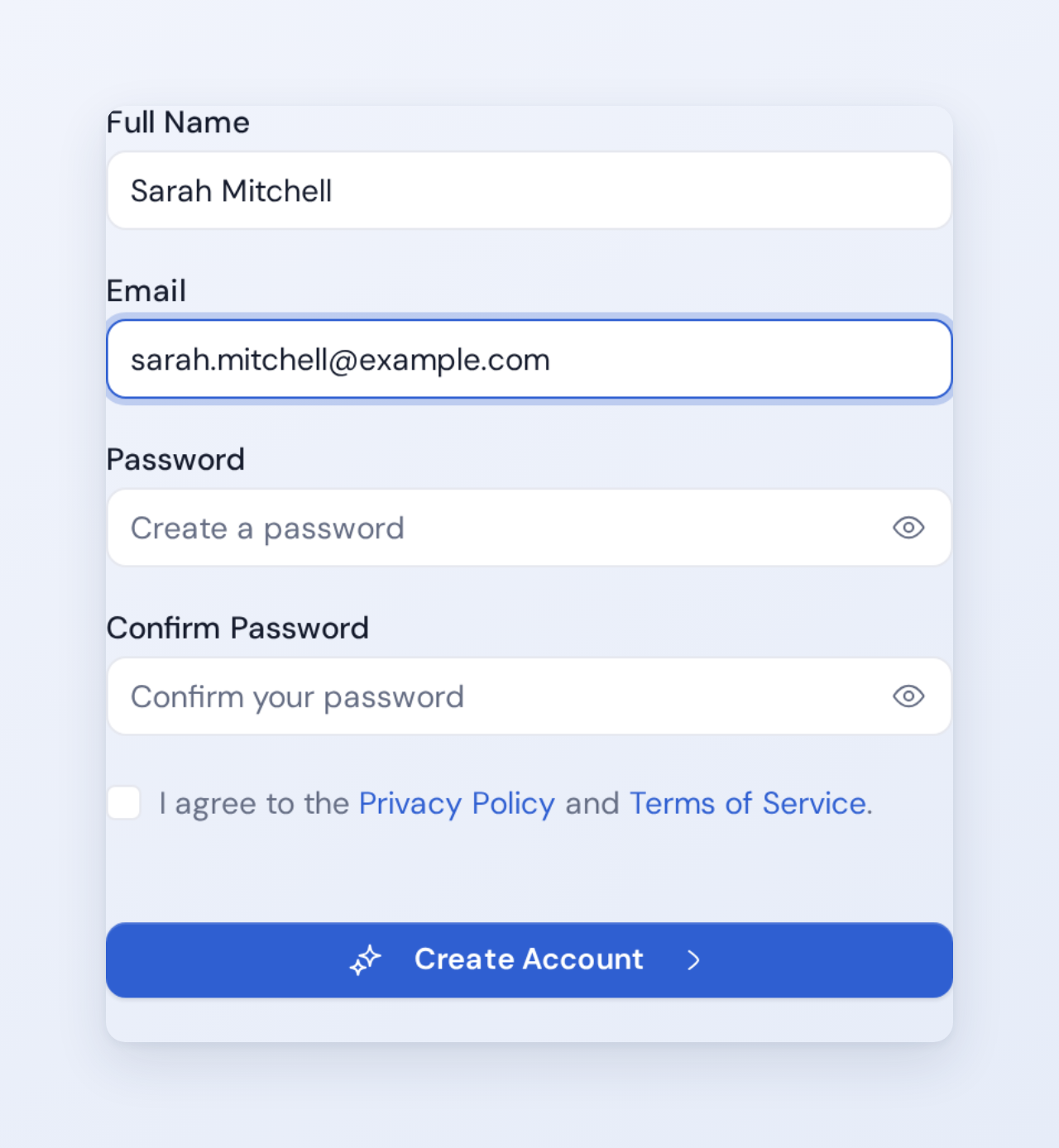
- Enter your full name.
- Enter your email address.
- Enter a password.
- Read the Privacy Policy and Terms of Service.
- Select the consent check box.
- Submit the form.
- Open the verification link in your email.
- Sign in to continue.
If you received an invitation, open its link instead. The invitation fixes the email address. Follow that path to join the intended organization or document.
Create the organization
For a new organization:
- Enter the Organization Name.
- Check the URL Slug.
- Click Create Organization.
For example, use Thistlecombe Holdings Ltd and thistlecombe-holdings-ltd. An invitation user follows the invitation instead of creating another organization.
Prepare the company profile
- Open Start a filing from Documents.
- Choose the source for your filing.
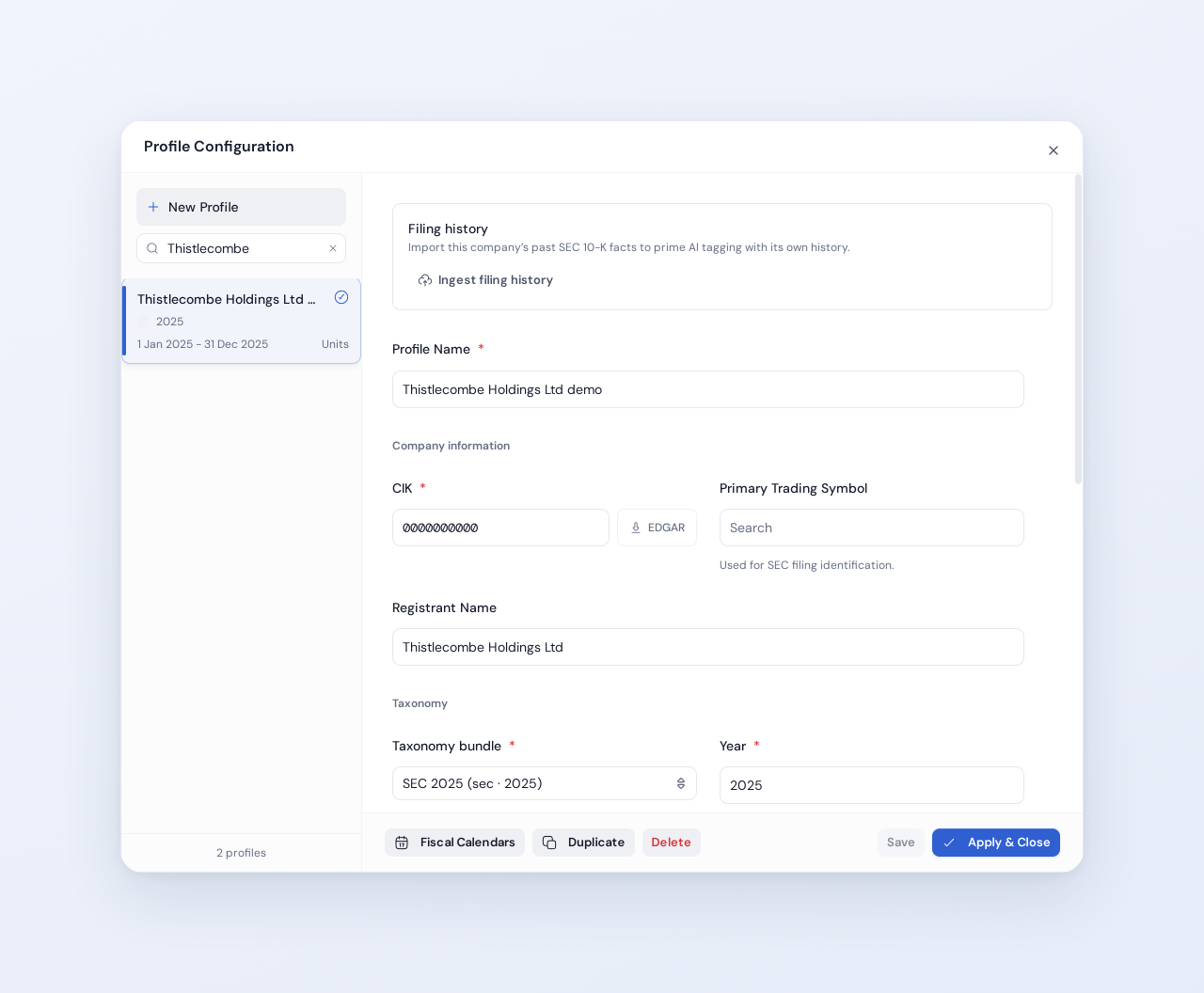
- Click New profile beside the profile selector.
- Set the reporting regime.
- Enter the company identity.
- Set the reporting period.
- Choose an available Taxonomy bundle and year.
- Save the profile.
An SEC profile needs the CIK, fiscal year and fiscal period. An ESEF profile needs the LEI and report language. Check the period dates for either profile.
ESEF launch support covers UK and DE, English and German, and the 2024 and 2025 taxonomies. Other markets are coming soon.
An imported SEC filing keeps its filed taxonomy scope. A profile change does not move that filing to another year. See Move a filing to a newer taxonomy year.
Continue with a source
For team roles and filing settings, see Manage the team and filing settings.
Use Upload and manage Source files to inspect files before import.
Next
Your first filing gives the journey overview. Then upload and inspect Source files.