Check a filing
Check filing finds problems that can block a filing and warnings that need review. Run it again after you fix the problems.
Who can do this
People with access to the filing can read the check results. Fixes need the relevant content or tag permission. Certification needs the Certifier role, or the document owner or an organization admin.
See Document roles.
Before you begin
- The filing opens in the editor.
- The filing has the correct company profile.
Run Check filing
- Open the Review tab.
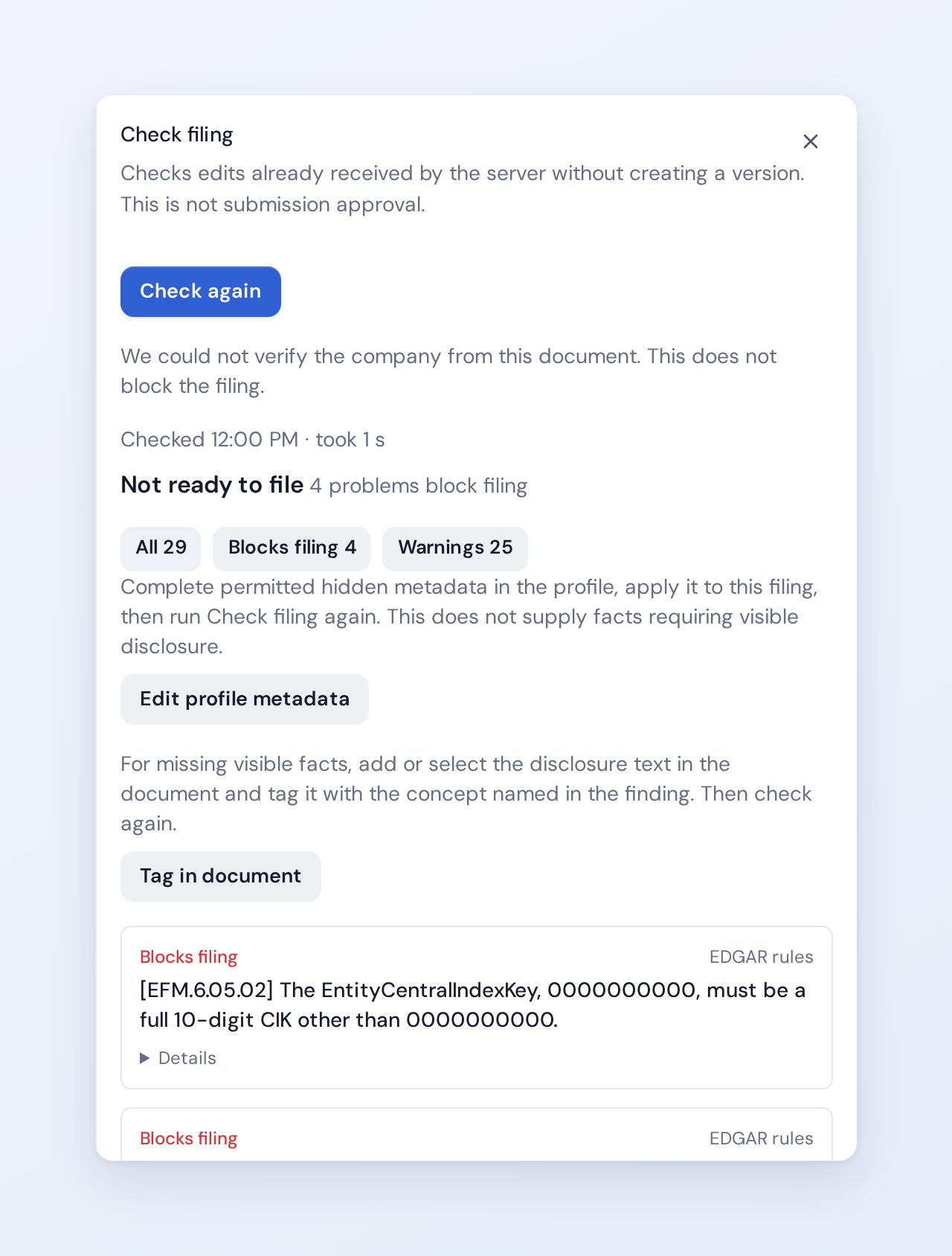
- Click Check filing.
- Wait for the result.
The panel can show a stored result from an earlier check. Click Check again when you need a new result.
You can close the panel and continue editing while the check runs. Changes after the check can make its result out of date.
If the validator does not answer, nothing was checked. Try Check again in a few minutes.
Read the results
Use the filters at the top of the result:
| Filter | What it shows |
|---|---|
| All | All findings. |
| Blocks filing | Problems that prevent filing. Fix these first. |
| Warnings | Findings that need a decision. |
| Review errors N | Review errors. This filter appears only when review errors exist. |
BriskTag groups related findings by cause. Blocking and warning counts describe causes, so one cause can include several findings.
Each card explains the problem. Categories include Cover page, EDGAR rules, Calculations, Units, Links and Sources.
For ESEF filings, Data quality (DQR) groups data quality warnings. DQR warnings do not block filing, but you must review them.
For a filing with several documents, choose This document to narrow the findings. Choose Whole filing to see all findings again.
This filter changes the list only. The check still covers the whole filing.
Fix the causes
- Find the card for the problem.
- Read its cause and suggested action.
- Click Go to fact when the card offers it.
- Correct the content, tag or setting named in the finding.
- Click Check again.
Some cards offer a direct fix. Use it only after you read what it changes.
If the result names a retired taxonomy year, use Move to YEAR when available. See Move a filing to a newer taxonomy year.
A changed tagged value can reset its verification or approval. The fact needs review again, even if its earlier value passed review.
Check the current version before certification
Changed since this check means the result is stale. Run Check again after your final changes.
Autosave and Build version N do not prove that a filing is ready. A saved version can say Not ready to file.
Certify needs a current check on the version with no blocking errors. Give a reason for each warning in the Certify dialog.
If Check filing could not run, an organization admin can certify with a reason.
Approval can ask you to acknowledge open findings. That acknowledgement does not clear the findings or replace the certification check.
After certification, open File → Filing Readiness. Resolve every blocker before you submit. A passing check alone is not approval to submit.