Upload and manage Source files
Before you import a filing, upload and inspect the files in Source files.
Who can do this
Organization members with Source files access can upload and inspect files. A document invitation does not grant access to the source library. Deletion also needs file ownership or organization admin access. Linked uses can block deletion.
Before you begin
- You have the files for the filing.
- You have access to your organization's Source files.
Upload source files
-
Open Source files.
The page heading says My storage.
-
Open Upload.
-
Choose Upload files.
-
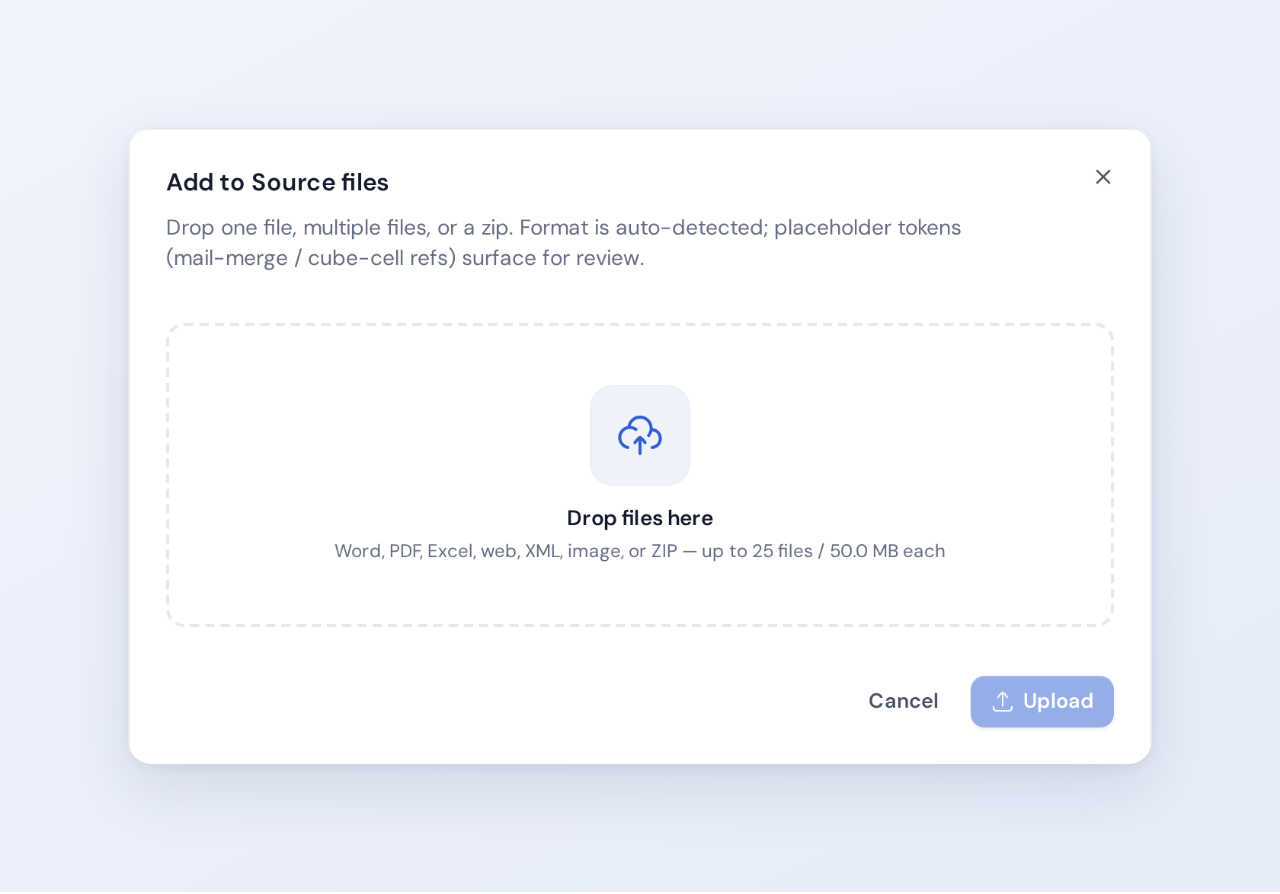
Read the file and batch limits in the dialog.
-
Choose the files.
-
Review the upload result.
Upload a ZIP on its own. Review its contents before you accept the selected files.
If a filename already exists, choose Add as new version, Keep both, or skip the file. A new version becomes an update to review in filings that use the file.
Inspect a file
- Open the file in Source files.
- Check the source version.
- Review the Word content or Excel sheet.
Source files and filing documents are separate. Uploading a file does not make a filing.
Use it in a filing
To start a filing, choose Choose from Source files in Start a filing. Select a supported file and its version.
To add content to an existing filing, open From files in the editor. Prepare the content as new sections or at the cursor. Review the prepared content before you add it.
See Assemble the filing for the insertion steps.
Check versions and uses
- Open Sources used in the editor.
- Check which source version the filing uses.
- Review any newer version before you replace content.
A new source version does not change filing content until someone reviews it. See Link values and review source updates.
Before deletion, check the file's uses. Only the file owner or an organization admin can delete it, with the required permission. If linked uses block deletion, read the reason before you change those uses.